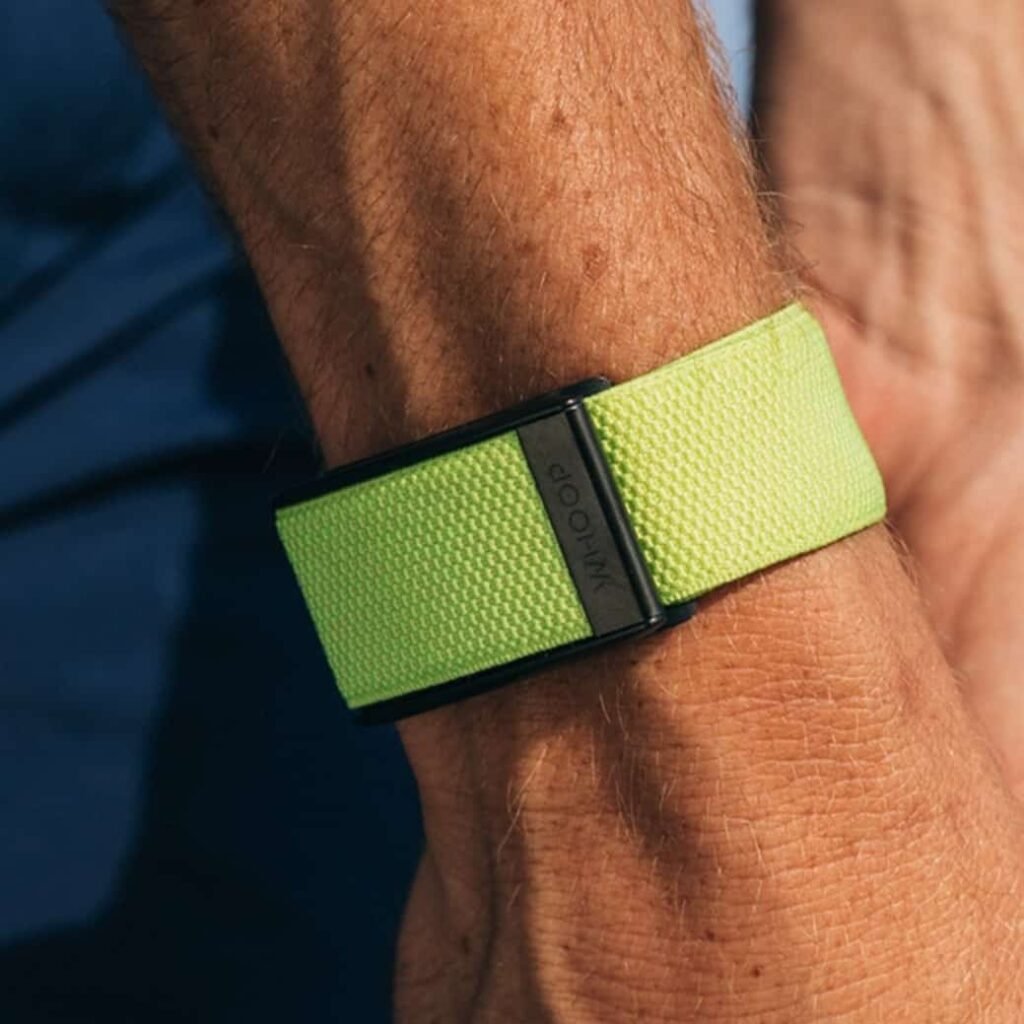
There's nothing quite like the jolt of excitement when you first strap on your Whoop, ready to optimize your recovery and performance. But that joy can quickly turn to frustration when your device isn't performing as expected. Whether you're grappling with connectivity woes, battery drain, or simply wondering about the best way to maintain your strap, understanding Common Whoop Issues and How to Troubleshoot for Best Performance is key to unlocking its full potential.
Think of your Whoop as a high-performance sports car: it's meticulously engineered, but even the best machines need regular tune-ups and occasional diagnostics. This guide isn't just about fixing problems; it's about empowering you to keep your Whoop running like a dream, ensuring every bit of data contributes to your fitness journey. We'll dive into the nitty-gritty, offering clear, actionable solutions that transform those moments of tech-induced head-scratching into quick wins.
At a Glance: Your Whoop Troubleshooting Toolkit
- Connectivity: Start with Bluetooth basics (on/off, device restart), then move to unpairing/repairing. Don't forget to put your Whoop into pairing mode (off-wrist, tap top until blue light flashes).
- Battery Life: Monitor background apps on your phone and always ensure your Whoop's firmware is up to date for optimal power usage.
- Charging: Confirm the charger is clean and properly aligned. Try a different power source if issues persist.
- Strap Wear: Inspect your strap regularly. If it's frayed or uncomfortable, a replacement is often the solution, ensuring both comfort and accurate data.
- Data Sync: Be patient! Significant data backlogs can take an hour or more to fully sync once connectivity is restored.
- Firmware: Regularly check for and install updates; they often include critical performance and battery optimizations.
- App Glitches: Force-closing and reopening the Whoop app can resolve many minor software hiccups.
The Heart of the Problem: Why Your Whoop Might Falter
The Whoop 4.0 band, and its predecessors, are powerful tools designed for continuous physiological monitoring. They deliver insights into recovery, sleep, and strain, making them invaluable for anyone serious about performance optimization. However, like any sophisticated wearable, they aren't immune to the occasional hiccup. The good news? Most common issues are straightforward to diagnose and fix with a little know-how.
Understanding what sets Whoop apart from conventional fitness trackers means appreciating its reliance on constant, accurate data flow. When that flow is interrupted, your personalized insights suffer, impacting your ability to make informed training and recovery decisions. That's why being proactive with troubleshooting pays dividends.
The Silent Disconnect: Battling Connectivity Woes
One of the most frequent frustrations Whoop users encounter is their device losing its connection or failing to sync with their smartphone. This can feel like you're tracking your efforts into a black hole. But don't fret; there's a systematic approach to getting things back on track.
Start with the Obvious: The Quick Checks
Before diving into more complex solutions, let's cover the foundational steps. These are the "Is it plugged in?" questions of Whoop troubleshooting, and they often resolve the issue in seconds.
- Bluetooth On? This might seem too basic, but ensure Bluetooth is enabled on your smartphone. Without it, your Whoop is simply an inert band.
- Whoop Charged? A dead battery is the ultimate disconnect. Confirm your Whoop has sufficient charge. The LED indicator on the side should give you a clue, or you can check the battery level in the Whoop app if it briefly connects.
- App Refresh: Force-close the Whoop app on your phone and then reopen it. This can clear minor software glitches preventing a handshake with your band.
Deep Dive: Re-establishing a Solid Link
If the quick checks didn't do the trick, it's time to dig a little deeper into the digital plumbing between your phone and your Whoop.
- Restart Both Devices: A classic IT solution, but effective. Restart your smartphone and then restart your Whoop band. For Whoop, you typically remove it from your wrist and then repeatedly tap the top of the sensor area until the LED flashes blue, indicating it's entered pairing mode. While the source primarily mentions using this for pairing, a full restart often happens as part of this process.
- Check Your Phone's Bluetooth Menu: Head into your phone's Bluetooth settings. Does your Whoop appear as "connected" there? If it does, but the Whoop app still isn't recognizing it, you'll need to take a more drastic step.
- Forget and Re-pair: This is often the magic bullet for persistent connectivity issues.
- Unpair/Forget the Device: In your phone's Bluetooth settings, find your Whoop device, select it, and choose "Forget Device" or "Unpair." This clears any corrupted connection data.
- Put Your Whoop into Pairing Mode: Crucially, you must take your Whoop off your wrist for this. Once off, gently tap the top of the sensor area repeatedly until the LED light begins flashing blue. It will stay in this mode for about three minutes, giving you time to reconnect. This applies to Whoop 4.0, 5.0, and MG trackers.
- Initiate Pairing via Whoop App: Open your Whoop app. Tap the device icon (often in the top right). If your Whoop is in pairing mode, the app should detect it. If you had to "forget" the device, you might need to go to "Device Settings," then the "Advanced" tab, and select "Pair a Device." Follow the on-screen prompts to complete the pairing process.
- Proximity Matters: While Whoop generally boasts decent range, ensure your band and phone are close to each other, especially during initial pairing or when experiencing intermittent drops. Keep them within arm's length for best results.
Patience, Young Padawan: Data Sync Catch-Up
Once your Whoop is reconnected, you might notice your data looks incomplete. Don't panic! If your band has been disconnected for a while, it might have stored a significant amount of data locally. Syncing this backlog to the cloud takes time. Whoop themselves indicate that 24 hours of accumulated data can take approximately an hour to fully catch up and appear in your app. So, grab a coffee, keep your phone and Whoop connected, and let it do its work. This process is vital for ensuring the accuracy of Whoop's measurements and the integrity of your performance insights.
Power Drainers: Tackling Battery and Charging Headaches
A Whoop with a rapidly draining battery or one that simply won't charge properly can derail your tracking. These issues often have straightforward solutions, stemming from either software optimization or physical connection.
When Your Battery Fades Too Fast
Experiencing a shorter-than-usual battery life on your Whoop 4.0 band can be disheartening, especially when you rely on its continuous monitoring.
- Check Background Apps on Your Smartphone: While not directly on your Whoop, excessive background activity on your paired smartphone can indirectly contribute to battery drain. Apps constantly refreshing or using Bluetooth in the background can keep your Whoop more active than necessary, consuming its power. Review your phone's app usage and consider restricting background activity for non-essential apps.
- Ensure Latest Firmware: This is a crucial, often overlooked step. Whoop regularly releases firmware updates for its bands. These updates aren't just about new features; they frequently include critical optimizations for battery usage and overall performance. Make sure your Whoop band is running the latest firmware version through the app. You'd be surprised how often an update resolves nagging battery issues. To proactively extend your Whoop's battery life, always keep it updated.
- Review Power-Intensive Activities: While Whoop is designed for continuous wear, intense activity or environments might slightly impact battery life. If you're consistently seeing significant drain after specific activities, ensure your firmware is current.
Charging Glitches: What to Do
If your Whoop isn't charging, or the charging process is erratic, here are your go-to steps:
- Inspect Charger and Contacts: First, examine your Whoop battery pack and the charging contacts on your Whoop band. Ensure they are clean and free of debris, sweat residue, or dirt. Use a dry, soft cloth or a cotton swab to gently clean them. Any obstruction can prevent proper electrical contact.
- Proper Alignment: Make sure the battery pack is correctly and securely attached to your Whoop band. It should click into place firmly. A loose connection won't allow for efficient charging.
- Try a Different Power Source: If charging still fails, try plugging the battery pack into a different USB port or power adapter. Sometimes, the issue isn't the Whoop but the power source itself. Use a wall adapter rather than a computer USB port for consistent power.
- Check Battery Pack Charge: Ensure the battery pack itself is charged. Connect it to a power source and check its indicator lights to confirm it's taking a charge.
Wear and Tear: Keeping Your Whoop Strap Shipshape
Your Whoop strap is your direct link to your physiological data. It endures sweat, daily friction, and constant movement. Over time, this can lead to wear and tear, impacting both comfort and the accuracy of your readings. Compared to other wearables, Whoop's strap system is integral to its sensor placement, making its condition paramount.
Recognizing When It's Time for a New Strap
The signs of a worn-out strap are usually pretty clear:
- Fraying or Stretching: The fabric might start to fray around the edges, or the elastic might lose its stretch, making it harder to maintain a snug, comfortable fit.
- Discoloration or Odor: Persistent discoloration or an unpleasant odor, even after cleaning, can indicate that the strap material is breaking down.
- Discomfort or Irritation: If your strap starts causing skin irritation where it previously didn't, it could be due to material degradation or a build-up of bacteria within the worn fibers.
- Sensor Misalignment: A stretched or damaged strap can prevent the Whoop sensor from sitting flush against your skin, potentially compromising data accuracy.
The Fresh Strap offers a variety of Whoop strap replacement bands for both the Whoop 3.0 and 4.0 bands. They come in bicep and wrist options, ensuring you can find the perfect fit and style. Replacing a worn strap isn't just about aesthetics; it's about maintaining data integrity and comfort.
Seamless Strap Replacement: A Step-by-Step Guide
Once you have your replacement strap, installing it correctly is crucial for proper functioning and accurate data collection. While specific instructions might vary slightly by strap type, the general process is straightforward.
- Remove the Old Strap: Gently unclip or slide the existing strap off your Whoop sensor. Most Whoop bands have a simple mechanism for strap removal.
- Clean Your Whoop Sensor: Before attaching the new strap, take a moment to wipe down your Whoop sensor itself. Ensure it's clean and dry.
- Attach the New Strap: Carefully slide or clip the new strap onto your Whoop sensor, ensuring it's securely fastened. Double-check that both sides are properly attached and that the sensor sits flat within the strap's housing.
- Adjust for Fit: Once installed, put your Whoop on and adjust the strap for a snug but comfortable fit. It should be tight enough that the sensor maintains constant contact with your skin, but not so tight that it restricts circulation or causes discomfort. For visual guidance, resources like Fresh Strap's "How it Works" page often provide video tutorials on proper strap installation and use.
Beyond the Basics: Other Whoop Performance Boosters
While connectivity, battery, and straps cover the major hardware and connection issues, other elements can significantly impact your Whoop's overall performance.
Firmware: Your Whoop's Brain Updates
We've touched on this for battery life, but firmware updates are critical for numerous reasons beyond just power optimization. They often introduce:
- Bug Fixes: Resolving software glitches that might cause inaccurate readings, unexpected shutdowns, or syncing problems.
- Performance Enhancements: Improving the efficiency of data processing, sensor accuracy, and overall responsiveness.
- New Features: Occasionally, updates bring new capabilities or metrics to your Whoop experience.
Make it a habit to regularly check for and install firmware updates via the Whoop app. Your app will usually notify you when an update is available, but you can also manually check in your device settings.
App Deep Clean: Resetting Your Digital Connection
Sometimes, the issue isn't with your Whoop band itself, but with the application on your smartphone. Just like any other app, the Whoop app can occasionally become bogged down or develop minor bugs.
- Force-Close and Reopen: This is the quickest fix for many app-related issues. Close the Whoop app completely (not just minimizing it) and then reopen it.
- Clear App Cache (Android): On Android devices, you can go into your phone's app settings, find the Whoop app, and clear its cache. This removes temporary data that might be corrupted. (iOS doesn't have a direct "clear cache" option; reinstalling the app is the closest equivalent).
- Reinstall the App: If issues persist, consider uninstalling and then reinstalling the Whoop app. This provides a fresh start for the application, often resolving deeper software conflicts. Make sure your data has synced to the cloud before doing this, though Whoop data is generally backed up.
Proper Placement: Ensuring Accurate Data
The fundamental purpose of your Whoop is to collect accurate physiological data. This hinges significantly on proper placement.
- Snug, Not Constricting: Whether you wear it on your wrist or bicep, your Whoop should be snug enough to maintain constant contact with your skin, without digging in or leaving deep marks. The sensor needs to be able to read blood flow accurately.
- Avoid Bony Areas: Position the sensor away from prominent wrist bones or other bony protrusions, as these can interfere with readings.
- Bicep vs. Wrist: For certain activities or individual comfort, a bicep band might offer more consistent readings, especially during high-impact exercises or when wrist movement is frequent. Experiment to find what works best for your body and activities.
When to Wave the White Flag: Contacting Whoop Support
Despite your best troubleshooting efforts, there might be times when your Whoop issue is beyond a simple fix. This is when it's time to leverage Whoop's official support channels.
- Persistent Hardware Issues: If your Whoop consistently fails to charge, won't turn on, or exhibits physical damage not related to normal wear and tear, it might be a hardware defect.
- Unresolvable Connectivity/Sync Problems: After following all the steps outlined above, if your Whoop still refuses to connect or sync reliably, it could indicate a deeper software or hardware problem that requires expert intervention.
- Inaccurate Data (Post-Troubleshooting): If you've ensured proper fit, updated firmware, and resolved connectivity, but your data still seems consistently erratic or wrong, reach out to support.
When contacting Whoop support, be prepared to provide: - Your Whoop ID: Found in the app.
- Detailed Description of the Problem: When did it start? What troubleshooting steps have you already tried? What were the results?
- Device Information: Your Whoop band's serial number (often found in the app's device settings) and your smartphone model and operating system version.
Providing thorough information will help the support team diagnose the issue more quickly and efficiently.
Your Whoop, Optimized: A Final Playbook for Peak Performance
Your Whoop is more than just a gadget; it's a vital partner in your health and fitness journey. By understanding is Whoop worth the investment?, you've already committed to a path of self-optimization. Taking the time to understand Common Whoop Issues and How to Troubleshoot for Best Performance is an extension of that commitment.
The principles we've covered – from ensuring basic connectivity and managing battery life to recognizing the need for a new strap and keeping your firmware updated – are your playbook for uninterrupted data flow and accurate insights. Most Whoop issues aren't deal-breakers; they're simply opportunities to apply a little technical finesse. With these tips in your arsenal, you're not just a Whoop user; you're a Whoop expert, capable of keeping your device humming along, delivering the continuous, actionable data you need to thrive. Stay on track, stay informed, and keep optimizing!